Writing notes
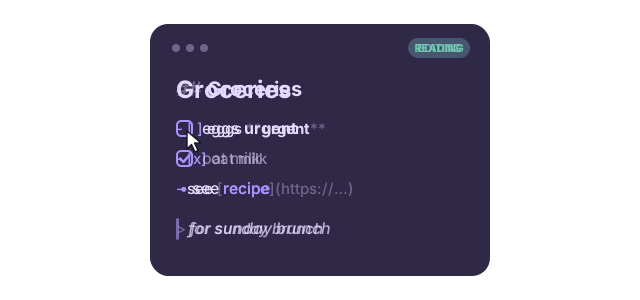
Edit view and read view
A note has two faces:
- Edit view
- The Markdown source, styled live. Syntax such as
**or#is dimmed, so you can see the structure without it shouting. - Read view
- A clean rendered version: checkboxes become real boxes, bullets become
•, and link targets are hidden.
Notes switch to the read view when you click away, and back to the edit view when you click into the text, at the spot you clicked. Press Ctrl+E to switch by hand, or Esc to go to the read view.
What you can write
| You type | You get |
|---|---|
# Big, ## Medium, ### Small |
Headings |
**bold** · *italic* · ~~strike~~ |
bold · italic · ~~strike~~ |
`code` |
code |
- item / 1. item |
Bullet / numbered list |
- [ ] todo / - [x] done |
Checkboxes you can click |
> quote |
Block quote |
[label](https://…) or a bare URL |
Link |
``` on its own line |
Code block (no formatting inside) |
--- |
Divider |
Lists that keep up
- Enter at the end of a list item starts the next one. Numbered lists count up.
- Enter on an empty item ends the list.
- Tab / Shift+Tab indents or outdents the current item.
Checklists
Click a checkbox in either view to tick it. In the read view, clicking a box toggles it without leaving the read view, so a checklist note works as a to-do list. Ticked items are struck through and faded.
Links
In the read view, click a link to open it. While editing, use Ctrl + click, so a normal click still places the cursor.
Colours
Hover over a note and click to choose one of seven colours. Each one has a separate dark variant that's used automatically when your system switches to dark mode. New notes take the colour of the note you used last.
Closing, hiding and deleting
- Close (Ctrl+W) hides a note. It's still saved, and you can bring it back from the notes manager.
- Hide all (
realer-xpad toggle) temporarily hides every note, and running it again brings them all back. - Delete (in the menu) moves the note to the trash folder after asking for confirmation. Empty notes are deleted straight away.
The notes manager
Open it from any note's menu (All Notes) or with realer-xpad manager. It
lists every note, newest first, with a preview. You can search, open, show or
hide, and delete notes from it.